


Apply an Effect to your element
You can easily add an effect (from our Special Effects Collection) to any of your existing elements. You can also use it as a secondary interaction.
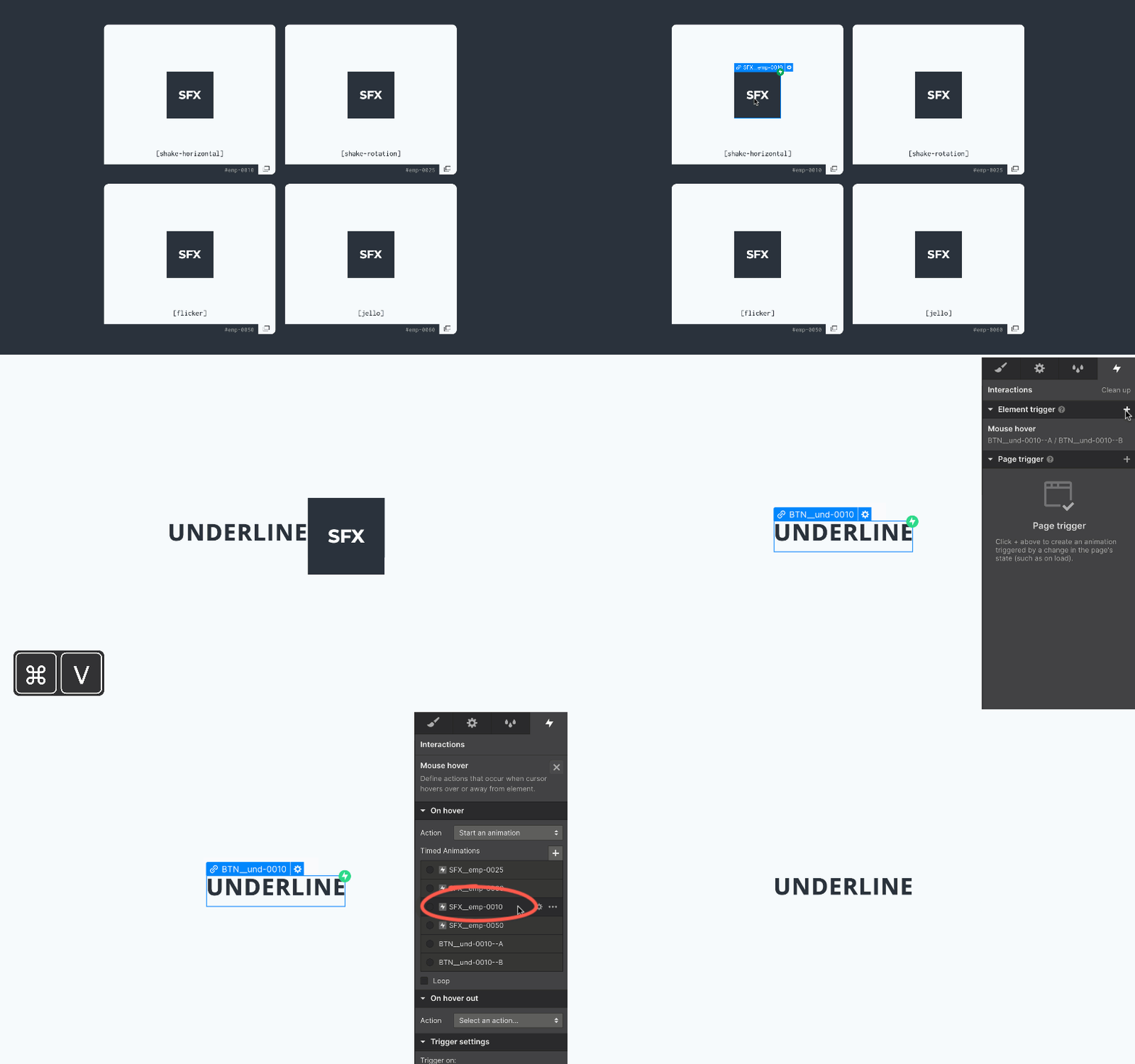
- 1Choose your preferred effect from the Special Effects Collection and copy it.
- 2Paste it into your project, then immediately delete it — the embedded interaction will remain in your project.
- 3Select the element to which you want to apply the effect.
- 4Open the Interactions panel and add an Element trigger (+).
- 5Find the correct interaction for the selected element — its name begins with the prefix “SFX__”.
Example:
Name of special effect: emp-0010
Action name (in the list of interactions): SFX__emp-0010 - !For effects that use a loop, make sure to check “Loop” at the end of the action list and add another secondary action to end the interaction.
Stay tuned! Get the latest updates straight to your inbox — once a month.
Thank you! Your submission has been received!
Oops! Something went wrong while submitting the form.



Copyright © 2026 Tadafy. All rights reserved.