


Replacing the default Webflow Menu button
You can easily replace the default Webflow Hamburger button (inside the Navbar component) with our animated Menu button.
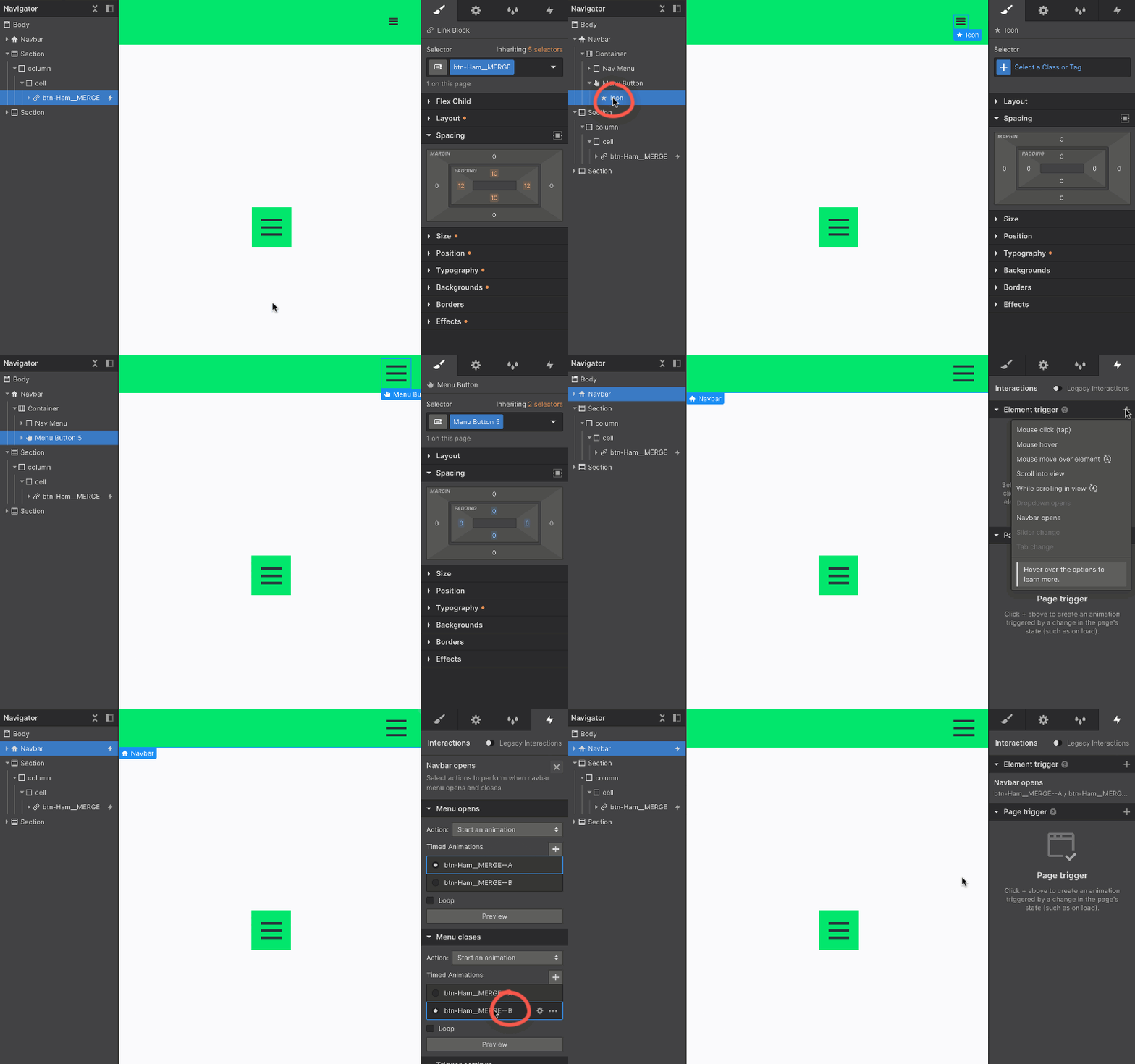
- 1Select your preferred Menu button from our Collection and copy it.
- 2Go to the Webflow Navbar component.
- 3Select the Icon element inside the default Menu button and delete it.
- 4Now select (inside the Navbar) and paste your new Menu button.
- 5Select your new Menu button, open the Interactions panel, and delete the existing interaction (click the trash icon).
- 6Select the component again, go to Interactions, and add a new Element trigger (+ icon) → Navbar opens.
- 7Finally, set the correct Interaction for the component - since the interactions of each item share the same name as the item itself, simply find the exact name for the Menu open and close actions:
Menu opens (1st click) → same name + suffix --A
Menu closes (2nd click) → same name + suffix --B
Example:
Menu button name: BTN__mnu-1234
Action for Menu opens (1st click): BTN__mnu-1234--A
Action for Menu closes (2nd click): BTN__mnu-1234--B - !Done! The menu will also close automatically when you click outside of the opened menu.
Stay tuned! Get the latest updates straight to your inbox — once a month.
Thank you! Your submission has been received!
Oops! Something went wrong while submitting the form.



Copyright © 2026 Tadafy. All rights reserved.